
HTML Attributes Reference
Complete reference for all WildflowerJS data attributes.
data-* and data-wf-* prefixes. Use data-wf-* exclusively when you need to avoid conflicts with other libraries.
Quick Reference
data-component
Marks an element as a component root and associates it with a component definition.
Syntax
<div data-component="component-name">...</div>Description
When the framework initializes, it scans for elements with data-component and creates component instances. The attribute value must match a registered component name.
Example
<!-- HTML -->
<div data-component="counter">
    <span data-bind="count">0</span>
    <button data-action="increment">+</button>
</div>
// JavaScript - must be registered before or after the element exists
wildflower.component('counter', {
state: { count: 0 },
increment() { this.count++; }
});Notes
- Each element gets a unique
data-component-idautomatically assigned - Components can be nested - child components initialize after parents
- The component name should use kebab-case (e.g.,
user-profile)
data-bind
Binds an element's text content to a state property or computed value.
Syntax
<span data-bind="propertyPath"></span>
<span data-bind="nested.property.path"></span>
<span data-bind="$entityName.path"></span>
Supported Formats
| Format | Description | Example |
|---|---|---|
property |
Bind to state or computed property | data-bind="username" |
nested.path |
Bind to nested property | data-bind="user.address.city" |
$entity.path |
Bind to external entity (store, component, plugin) | data-bind="$user.name" |
Example
wildflower.component('profile', {
    state: {
        user: { name: 'Alice', role: 'Admin' }
    },
    computed: {
        displayName() {
            return `${this.user.name} (${this.user.role})`;
        }
    }
});
<div data-component="profile">
<p>Name: <span data-bind="user.name"></span></p>
<p>Display: <span data-bind="displayName"></span></p>
</div>In List Context
Inside a data-list, bindings resolve against the current item:
<ul data-list="users">
    <template>
        <li>
            <span data-bind="name"></span> - <span data-bind="email"></span>
            <span data-bind="_index"></span> <!-- Built-in index -->
        </li>
    </template>
</ul>
data-bind-html
Binds an element's innerHTML to a state property. Use with caution.
Syntax
<div data-bind-html="htmlContent"></div>Example
wildflower.component('content', {
    state: {
        markup: '<strong>Bold</strong> and <em>italic</em>'
    }
});
<div data-component="content">
<div data-bind-html="markup"></div>
</div>data-bind-class
Dynamically sets CSS classes based on an expression.
Syntax
<div data-bind-class="expression"></div>Expression Format
The expression should evaluate to a string of space-separated class names:
<!-- Ternary expression -->
<div data-bind-class="isActive ? 'active' : 'inactive'"></div>

<!-- Multiple classes -->
<div data-bind-class="isError ? 'alert alert-danger' : 'alert alert-success'"></div>

<!-- Compound conditions -->
<div data-bind-class="isLoading ? 'loading' : (hasError ? 'error' : 'success')"></div>
Available Variables
- State properties:
isActive,status,user.role - Computed properties:
computed.isValid - In lists: Item properties like
done,type, plus_index,_first,_last
Example
wildflower.component('task', {
    state: {
        tasks: [
            { text: 'Learn WildflowerJS', done: true },
            { text: 'Build something', done: false }
        ]
    }
});
<ul data-list="tasks">
<template>
<li data-bind-class="done ? 'completed text-muted' : ''">
<span data-bind="text"></span>
</li>
</template>
</ul>data-bind-style
Dynamically sets inline styles based on an expression.
Syntax
<div data-bind-style="expression"></div>Expression Format
The expression should evaluate to an object with camelCase CSS properties:
<!-- Object literal -->
<div data-bind-style="{ color: textColor, backgroundColor: bgColor }"></div>

<!-- Computed property returning object -->
<div data-bind-style="dynamicStyles"></div>

<!-- With state reference -->
<div data-bind-style="{ width: progress + '%' }"></div>
Example
wildflower.component('progress-bar', {
    state: {
        progress: 65,
        color: '#4CAF50'
    },
    computed: {
        barStyles() {
            return {
                width: this.progress + '%',
                backgroundColor: this.color,
                height: '20px',
                transition: 'width 0.3s ease'
            };
        }
    }
});
<div data-component="progress-bar">
<div class="progress-track">
<div data-bind-style="barStyles"></div>
</div>
<span data-bind="progress"></span>%
</div>data-model
Creates two-way binding between a form input and state property.
Syntax
<input data-model="propertyPath">Supported Elements
| Element | Event | Property |
|---|---|---|
<input type="text"> | input | value (string) |
<input type="number"> | input | value (number) |
<input type="checkbox"> | change | checked (boolean) |
<input type="radio"> | change | value (string) |
<textarea> | input | value (string) |
<select> | change | value (string) |
Example
wildflower.component('form-demo', {
    state: {
        username: '',
        email: '',
        subscribe: false,
        plan: 'free'
    }
});
<div data-component="form-demo">
<input type="text" data-model="username" placeholder="Username">
<input type="email" data-model="email" placeholder="Email">
<label>
<input type="checkbox" data-model="subscribe">
Subscribe to newsletter
</label>
<select data-model="plan">
<option value="free">Free</option>
<option value="pro">Pro</option>
</select>
</div>data-action
Binds DOM events to component methods.
Syntax
<!-- Default click event -->
<button data-action="methodName">Click</button>

<!-- Specific event -->
<input data-action="input:onType">
<form data-action="submit:onSubmit">
Event Modifiers
| Attribute | Description |
|---|---|
data-event-prevent | Call event.preventDefault() |
data-event-stop | Call event.stopPropagation() |
data-event-once | Handler fires at most once, then is removed |
data-event-passive | Passive event listener (improves scroll performance) |
data-event-debounce="300" | Debounce handler (ms, default 300) |
data-event-throttle="300" | Throttle handler (ms, default 300) |
Method Signature
methodName(event, element, context) {
    // event - The DOM event object
    // element - The element that triggered the event
    // context - Additional context (index in lists, etc.)
}
Example
wildflower.component('search', {
    state: { query: '', results: [] },

    onSearch(event, element) {
        event.preventDefault();
        this.fetchResults();
    },

    onInput(event) {
        this.query = event.target.value;
    },

    async fetchResults() {
        // ... fetch logic
    }
});
<form data-component="search" data-action="submit:onSearch" data-event-prevent>
<input type="text"
data-model="query"
data-action="input:onInput"
data-event-debounce="300">
<button type="submit">Search</button>
</form>data-show
Conditionally shows/hides an element using CSS display property.
Syntax
<div data-show="condition">...</div>
<div data-show="!condition">...</div> <!-- Negated -->
Description
When the condition is falsy, the element gets display: none. The element remains in the DOM.
Example
wildflower.component('loader', {
    state: {
        isLoading: true,
        hasError: false,
        data: null
    }
});
<div data-component="loader">
<div data-show="isLoading">Loading...</div>
<div data-show="hasError">Error occurred!</div>
<div data-show="!isLoading && !hasError">
<span data-bind="data"></span>
</div>
</div>Computed Conditions
<div data-show="shouldShow">...</div>data-render
Conditionally adds/removes an element from the DOM entirely.
Syntax
<div data-render="condition">...</div>Difference from data-show
| Attribute | When False | Use Case |
|---|---|---|
data-show |
Hidden via CSS (display: none) |
Frequent toggling, preserve state |
data-render |
Removed from DOM entirely | Heavy content, conditional components |
Example
<div data-component="app">
    <!-- Component only initialized when isLoggedIn is true -->
    <div data-render="isLoggedIn">
        <div data-component="user-dashboard">...</div>
    </div>

    <div data-render="!isLoggedIn">
        <div data-component="login-form">...</div>
    </div>
</div>
data-list
Renders a list of items from an array in state.
Syntax
<container data-list="arrayPath">
    <template>
        <!-- Item template -->
    </template>
</container>

<!-- From computed property -->
<container data-list="filteredItems">...</container>
Template Context Variables
| Variable | Type | Description |
|---|---|---|
_index | number | Zero-based index of current item |
_length | number | Total number of items |
_first | boolean | True if first item |
_last | boolean | True if last item |
Example
wildflower.component('todo-list', {
    state: {
        todos: [
            { id: 1, text: 'Learn WildflowerJS', done: true },
            { id: 2, text: 'Build an app', done: false }
        ]
    },

    toggleTodo(event, element, context) {
        const index = context.index;
        this.todos[index].done = !this.todos[index].done;
    },

    removeTodo(event, element, context) {
        this.todos.splice(context.index, 1);
    }
});
<ul data-component="todo-list" data-list="todos">
<template>
<li data-bind-class="done ? 'completed' : ''">
<input type="checkbox" data-model="done" data-action="change:toggleTodo">
<span data-bind="text"></span>
<span class="index">#<span data-bind="_index"></span></span>
<button data-action="removeTodo">Delete</button>
</li>
</template>
</ul>data-key
Specifies a unique identifier property for optimized list rendering.
Syntax
<ul data-list="items" data-key="id">...</ul>Description
When items have unique IDs, the framework can optimize updates by reusing existing DOM elements. Without keys, items are matched by index which can cause issues when reordering.
Auto-Detection
If items have an id property, the framework automatically uses it for keying. Use data-key to specify a different property.
Example
<!-- Using 'id' property (auto-detected if present) -->
<ul data-list="users" data-key="id">...</ul>

<!-- Using custom key property -->
<ul data-list="products" data-key="sku">...</ul>
data-pool
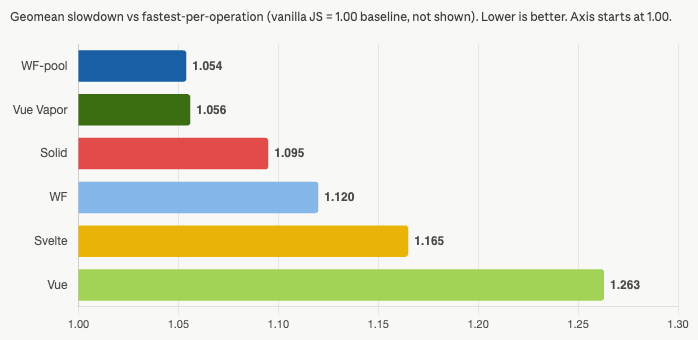
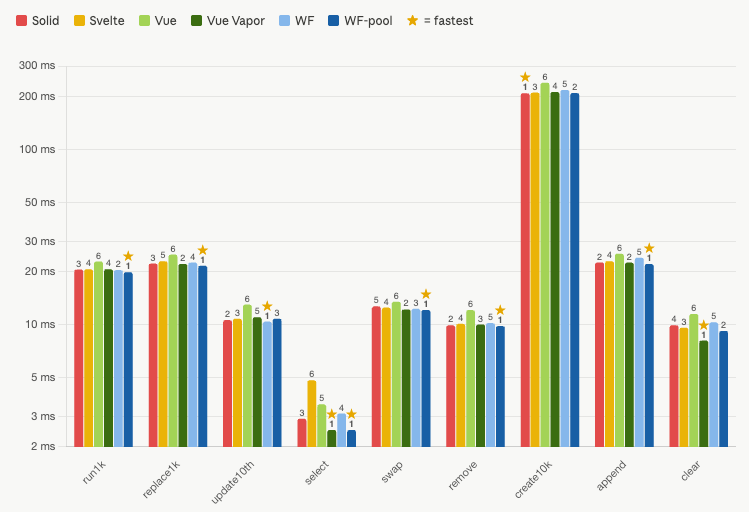
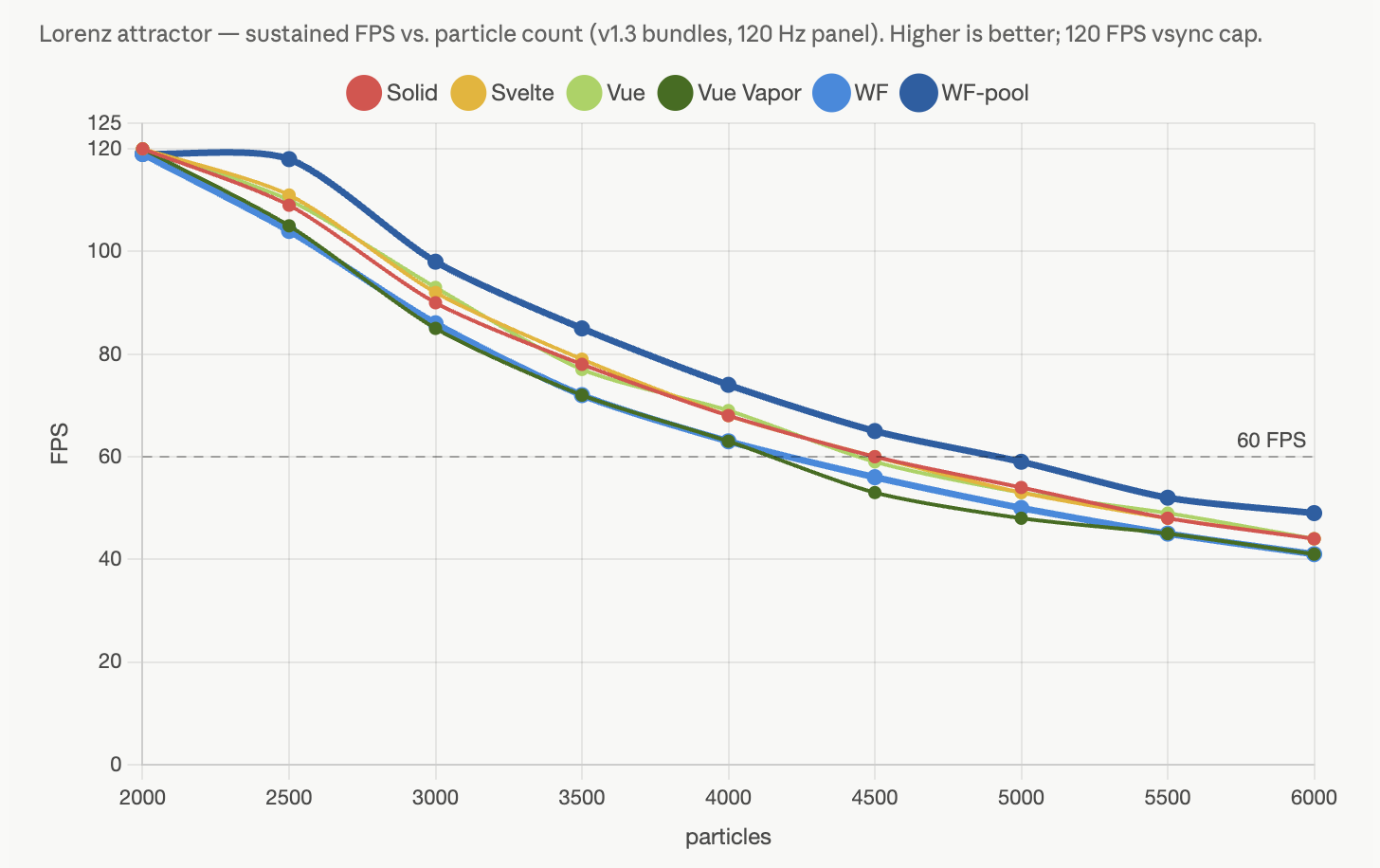
Explicit-control collection renderer. Unlike data-list, pool items are plain JS objects with zero reactive proxy overhead. Handles full CRUD, selection, and bulk operations, faster than the reactive path for performance-sensitive workloads, real-time data, and per-frame animation. DOM updates are batched via a shared requestAnimationFrame loop.
Syntax
<div data-pool="poolName" data-key="id">
    <template>
        <!-- Entity template -->
    </template>
</div>
Declaration (preferred)
pools: {
    enemies: {
        onAdd: 'onSpawn',       // lifecycle hook (string ref or inline fn)
        onRemove: 'onDeath',    // fires before individual removal
        onClear: 'onWaveEnd'    // fires once on bulk clear
    },
    projectiles: {}             // no hooks needed
}
// Access: this.pools.enemies.add({...})
API (container this.pools.name, or this.getPool(name) for any pool)
| Method / Property | Description |
|---|---|
pool.add(obj) | Add an entity to the pool |
pool.remove(key) | Remove entity by key value |
pool.get(key) | Get entity object by key (or undefined) |
pool.clear() | Remove all entities |
pool.items | Raw array of entity objects, mutate properties freely |
pool.size | Current entity count |
pool.getElement(key) | Get DOM element for an entity by key |
pool.markDirty(key) | Mark a single entity for re-render. Switches the pool from animation mode (default: all entities flushed every frame) to targeted mode (only dirty entities are flushed). Use for sparse, data-driven updates where most entities are unchanged between frames. |
Pool Modifier Attributes
| Attribute | Description |
|---|---|
data-pool-fps="N" | Cap render rate to N frames per second. Omit for native frame rate. |
data-pool-static | Boolean (no value): passive pool, skips rAF flush entirely. With a value (data-pool-static="propName"): per-entity static property; entities with a truthy value for that property are excluded from the per-frame flush. |
data-pool-cull="N" | Enable spatial culling. N is padding in pixels around the viewport; entities outside the padded bounds are skipped during flush. |
data-pool-cull-props="x,y" | Data-based culling via entity properties. Accepts "x,y" (point) or "x,y,w,h" (rect): maps entity property names to spatial coordinates for culling decisions. |
data-pool-sort="prop" | Z-index sort by entity property. Use data-pool-sort="prop:desc" for descending order. |
Supported Template Bindings
data-bind, data-bind-style, data-bind-attr, data-bind-class, data-show
Constraints
- Pool templates can only reference entity properties; component state, computed properties, and store values are NOT available inside pool templates
data-keyspecifies the unique identifier property (defaults toid)- Pools are automatically cleaned up when the owning component is destroyed
Example
<div data-pool="enemies" data-key="id">
    <template>
        <div class="sprite" data-bind-style="{ left: x + 'px', top: y + 'px' }">
            <img data-bind-attr="{ src: imgSrc }">
            <span data-bind="label"></span>
        </div>
    </template>
</div>
wildflower.component('game-board', {
init() {
this.pools.enemies.add({ id: 1, x: 100, y: 200, imgSrc: 'orc.png', label: 'Orc' });
},
gameLoop() {
// Animation mode (default): mutate freely, all entities flush every frame
for (const enemy of this.pools.enemies.items) {
enemy.x += enemy.speed;
}
},
// Targeted mode: call markDirty() for sparse updates (e.g., data dashboards)
updateScore(id, newScore) {
const enemy = this.pools.enemies.get(id);
enemy.score = newScore;
this.pools.enemies.markDirty(id); // only this entity re-renders
}
});When to Use
Start with data-list; it's the right default. Reach for data-pool when you need explicit update control, better performance at scale, real-time data, or high-frequency rendering. Use data-list when items need two-way binding (data-model), parent computed properties, or nested lists.
data-portal
Renders content to a different location in the DOM (useful for modals, tooltips).
Syntax
<!-- Source: content to be portaled -->
<div data-portal="portal-id" data-show="isOpen">
    Modal content here
</div>

<!-- Target: where content appears -->
<div data-portal-target="portal-id"></div>
Example
<div data-component="modal-demo">
    <button data-action="openModal">Open Modal</button>

    <!-- This content renders at the portal target -->
    <div data-portal="my-modal" data-show="isModalOpen">
        <div class="modal-backdrop">
            <div class="modal-content">
                <h2>Modal Title</h2>
                <p>Modal body content</p>
                <button data-action="closeModal">Close</button>
            </div>
        </div>
    </div>
</div>

<!-- Typically at end of body -->
<div data-portal-target="my-modal"></div>
data-transition
Applies CSS transitions when elements enter/leave the DOM.
Syntax
<div data-show="condition" data-transition="transition-name">...</div>CSS Classes Applied
| Class | When Applied |
|---|---|
{name}-enter | Starting state for enter |
{name}-enter-active | Active/ending state for enter |
{name}-leave | Starting state for leave |
{name}-leave-active | Active/ending state for leave |
Example CSS
.fade-enter {
    opacity: 0;
}
.fade-enter-active {
    opacity: 1;
    transition: opacity 300ms ease-in;
}
.fade-leave {
    opacity: 1;
}
.fade-leave-active {
    opacity: 0;
    transition: opacity 300ms ease-out;
}
Example HTML
<div data-show="isVisible" data-transition="fade">
    This content fades in and out
</div>
data-prop-*
Passes data from parent to child components via props.
Syntax
<!-- Pass state property -->
<div data-component="child" data-prop-user="currentUser"></div>

<!-- Pass literal value (plain text that isn't a state property name) -->
<div data-component="child" data-prop-title="Hello World"></div>

<!-- Pass number or boolean -->
<div data-component="child" data-prop-count="42" data-prop-visible="true"></div>

<!-- Pass parent method as callback -->
<div data-component="child" data-prop-on-save="handleSave"></div>
Description
Props provide explicit data flow from parent to child components. The attribute name after data-prop- becomes the prop name in camelCase (e.g., data-prop-user-name becomes userName).
Example
// Child component defines expected props
wildflower.component('user-card', {
    props: {
        user: { type: Object, required: true },
        theme: { type: String, default: 'light' }
    },
    computed: {
        displayName() {
            return this.props.user.name;
        }
    }
});
<div data-component="parent">
<div data-component="user-card"
data-prop-user="currentUser"
data-prop-theme="dark">
<span data-bind="props.user.name"></span>
</div>
</div>Notes
- Props are accessed via
this.propsin JavaScript andprops.*in bindings - Props are reactive - child updates when parent data changes
- See Props Guide for type validation and defaults
data-props
Passes multiple props to a child component in a single attribute using object expression syntax.
Syntax
<!-- Values resolve from parent state -->
<div data-component="child" data-props="{ title: cardTitle, color: accentColor }"></div>

<!-- Quoted string values (commas allowed inside quotes) -->
<div data-component="child" data-props="{ label: 'hello, world', color: color }"></div>
Description
A convenience syntax for passing multiple props at once instead of using separate data-prop-* attributes. Keys become prop names; values are resolved as parent state paths (or as literal strings when quoted).
Example
<!-- These two are equivalent -->
<div data-component="card"
     data-props="{ title: cardTitle, color: accentColor }"></div>

<div data-component="card"
     data-prop-title="cardTitle"
     data-prop-color="accentColor"></div>
Notes
- Values update reactively when the parent state changes
- Can be used alongside individual
data-prop-*attributes; individual attributes take precedence - See Props Guide for full details
data-use-template
References a named template defined by a parent component for rendering.
Syntax
<!-- Child references parent's named template -->
<div data-use-template="templateName" data-with="dataPath"></div>
Related Attributes
| Attribute | Description |
|---|---|
data-item-template="name" |
Parent defines a named template |
data-use-template="name" |
Child references the template |
data-with="path" |
Binds template to a state path |
Example
<!-- Parent defines how user should be displayed -->
<div data-component="user-page">
    <template data-item-template="userCard">
        <div class="card">
            <h5 data-bind="name"></h5>
            <p data-bind="email"></p>
        </div>
    </template>

    <!-- Child uses the template with its data -->
    <div data-component="profile">
        <div data-use-template="userCard" data-with="user"></div>
    </div>
</div>
Notes
- Enables inversion of control - parent controls presentation, child provides data
- Templates are fully reactive to data changes
- See Configurable Templates Guide for advanced usage
data-item-template
Defines a named template that child components can reference.
Syntax
<template data-item-template="templateName">
    <!-- Template content with data-bind attributes -->
</template>
See data-use-template for complete usage.
data-external
Preserves an element and its component during HTML content updates.
Syntax
<div data-external data-component="live-chart">...</div>Description
When parent content is updated via data-bind-html or programmatic innerHTML changes, elements marked with data-external are preserved rather than destroyed and recreated. This is useful for:
- Interactive components that maintain internal state (charts, editors)
- Components with expensive initialization
- Live code examples in documentation
Example
<div data-component="content-page">
    <!-- This content may be updated dynamically -->
    <div data-bind-html="pageContent">
        <!-- This chart component survives content updates -->
        <div data-external data-component="live-chart">
            <canvas id="myChart"></canvas>
        </div>
    </div>
</div>
Notes
- The element must have a stable position - use placeholder markers if needed
- Works with both components and regular elements
- Garbage collection skips elements marked as external
data-bind-attr
Dynamically sets HTML attributes based on an object expression.
Syntax
<element data-bind-attr="expression">Description
The expression should evaluate to an object where keys are attribute names and values are attribute values. A value of null, undefined, or false removes the attribute. A value of true sets a boolean attribute (empty string).
Example
<img data-bind-attr="{ src: avatarUrl, alt: userName, title: userName }">

<!-- Conditional boolean attribute -->
<button data-bind-attr="{ disabled: isSubmitting }">Submit</button>

<!-- In a pool template -->
<div data-pool="items">
    <template>
        <a data-bind-attr="{ href: url, target: external ? '_blank' : null }"
           data-bind="label"></a>
    </template>
</div>
data-cloak
Prevents flash of unstyled content (FOUC) during initial render.
Syntax
<div data-component="app" data-cloak>...</div>Description
Add a CSS rule to hide cloaked elements before the framework initializes. After the first render pass completes (including data-show/data-render evaluation), the framework removes the attribute, making the content visible. This is deferred via requestAnimationFrame so conditionals are evaluated before the cloak is lifted.
Required CSS
[data-cloak] { display: none !important; }The !important is load-bearing. [data-cloak] has the same specificity as a single class, so any component rule that sets display would win the tie and the element would flash until the framework hides it.
Example
<style>[data-cloak] { display: none !important; }</style>

<div data-component="dashboard" data-cloak>
    <div data-show="isLoggedIn">Welcome back!</div>
    <div data-show="!isLoggedIn">Please log in.</div>
</div>
data-slot / data-slot-container
Slot-based content projection from parent into child component.
Syntax
<!-- In child component template: define a slot container -->
<div data-slot-container="slotName"></div>

<!-- In parent: provide content for the slot -->
<div data-component="child">
    <div data-slot="slotName">Projected content here</div>
</div>
Description
The child component defines named insertion points with data-slot-container. The parent provides content for each slot using matching data-slot attributes. When the component initializes, slot content is moved from the parent markup into the corresponding container.
Example
<!-- card component template defines slots -->
<div data-component="card">
    <div class="card-header" data-slot-container="header"></div>
    <div class="card-body" data-slot-container="body"></div>
</div>

<!-- Usage: parent fills the slots -->
<div data-component="card">
    <div data-slot="header"><h3>Card Title</h3></div>
    <div data-slot="body"><p>Card content goes here.</p></div>
</div>